Protecting children: Mandatory reporting and other obligations
How to enrol in and complete this online training. This page provides guidance about how to access training for mandatory reporting.
If you need to make a mandatory report, contact Child Protection in the local government area (LGA) where the child normally resides.
To report immediate concerns for the safety of a child, contact Victoria Police on 000.
These guides are for Victorian education workforce professionals who need to undertake the Protecting Children - Mandatory Reporting and Other Obligations (PROTECT) online eLearning provided by the Department of Education.
This training is designed to support education workforces with their capacity to respond effectively to children whose safety, health or wellbeing may be at risk.
The Protecting Children - Mandatory Reporting and Other Obligations Non-Government Schools and the Protecting Children - Mandatory Reporting and Other Obligations Early Childhood eLearn training modules have moved to a new learning management platform.
If you are accessing either course for the first time on this new platform, you will need to create a new account.
Guidance on how to create an account and access the training on the new platform is provided in the Non-government school staff and Early childhood professionals sections below.
Open all
- Non-government school staff
This guide is for Victorian non-government school staff, including:
- Catholic school staff
- independent school staff and
- Casual Relief Teachers (CRTs), including CRTs who work at government schools who do not have an @education.vic.gov.au email address. Non-government schools should keep local records to track staff completion of the eLearning module. A copy of the certificate of completion should be submitted to the relevant school co-ordinator and retained by the staff member.
To begin, open your web browser (preferably Microsoft Edge or Google Chrome) and log in or create a new account for the interim LMS.
We strongly recommend using a laptop or a desktop computer. This course is interactive and may not display correctly on a smartphone or tablet.
All users - Create new account
Step 1: You must create a new account to access the LMS. Even if you already have a Canvas account elsewhere, it will not work on this system. All users must register a new account specifically for this site.
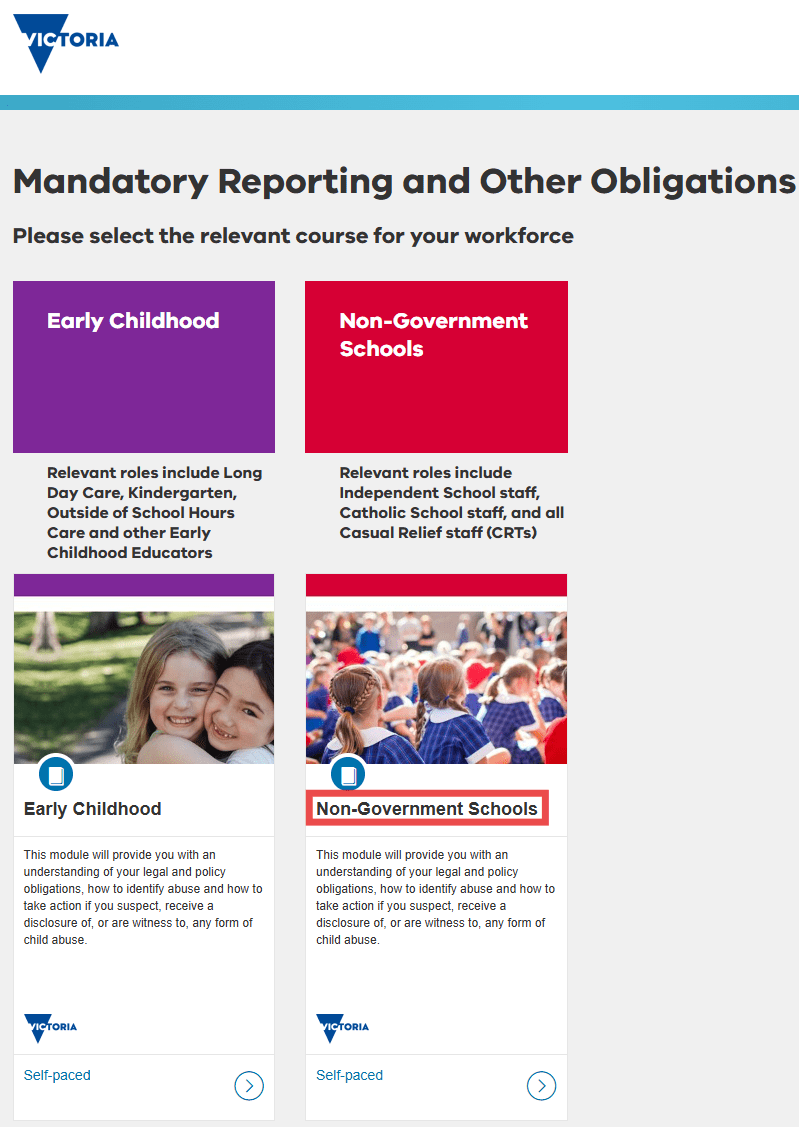
Go to https://protectngstraining.education.vic.gov.au(opens in a new window) and select the Non-Government Schools course.
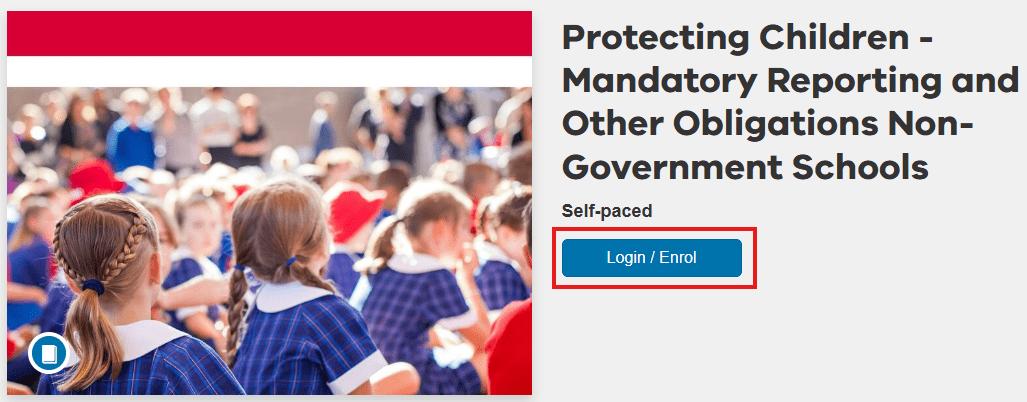
On the Protecting Children - Mandatory Reporting and Other Obligations Non-Government Schools course page, click the blue Login / Enrol button.
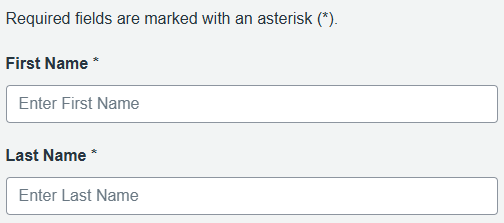
Step 2: Create an account by filling out the required fields.
You must fill in all the fields flagged with an asterisk (*).
The Department of Education manages personal information in accordance with relevant Victorian privacy law, the Privacy and Data Protection Act 2014. For more details, visit the Privacy Information Policy.
Enter your first name and last name.
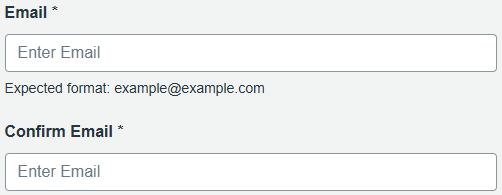
Enter your email address twice.
Step 3: Complete the section Which school sector do you work in?
For Sector, select ‘Catholic’ or ‘Independent’.
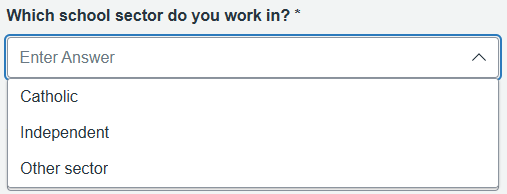
If you are a Casual Relief Teacher (CRT), select the sector that you mostly work in. If this is a government school, select ‘Other sector’.
Step 4: Complete the section Please enter the name of your school. Start typing your school’s name and select it from the drop-down list.
If your school is not listed, type ‘other’ and select ‘Other - please specify’ and enter your school’s full name in the field below.
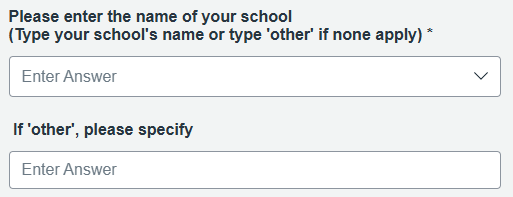
Step 5: Agree to the terms and complete verification.
Tick the box to agree to the Terms of Use and acknowledge the Privacy Policy.
Then, complete the reCAPTCHA by selecting ‘I’m not a robot’, and click Register New Account to finish.
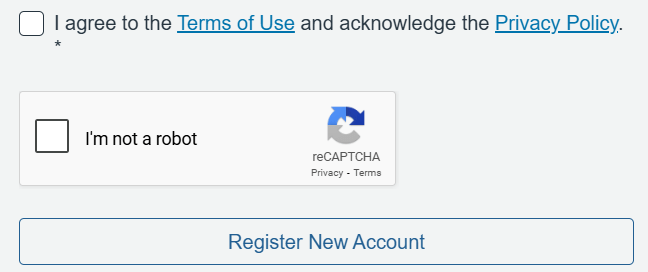
Step 6: Once you have successfully created an account, you will receive an email asking you to set up your password. Click the blue ‘Set up your password’ button in this email to complete your registration. Check your junk or spam folder in case it appears there.
Navigate to your course
Step 1: Once you have successfully set up your password, you will be taken to your Student Dashboard.
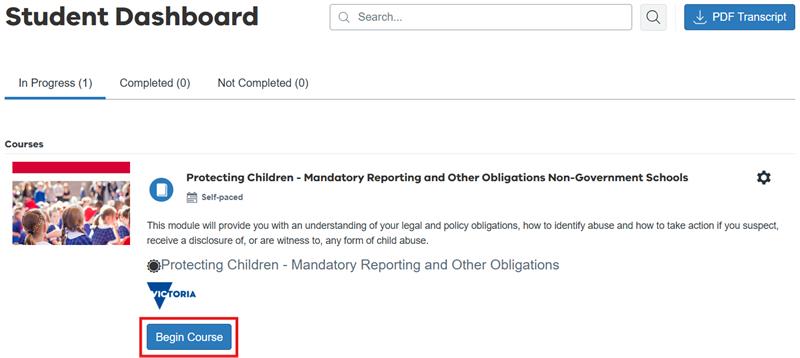
Step 2: Click the button ‘Begin Course’.
This course has two sections. A learning module and an assessment.
IMPORTANT: You need to complete BOTH the learning module and the assessment to successfully complete this course.
Step 3: Click on the text that says ‘Learning Module - Mandatory Reporting and Other Obligations for Non-Government Schools’ to begin.

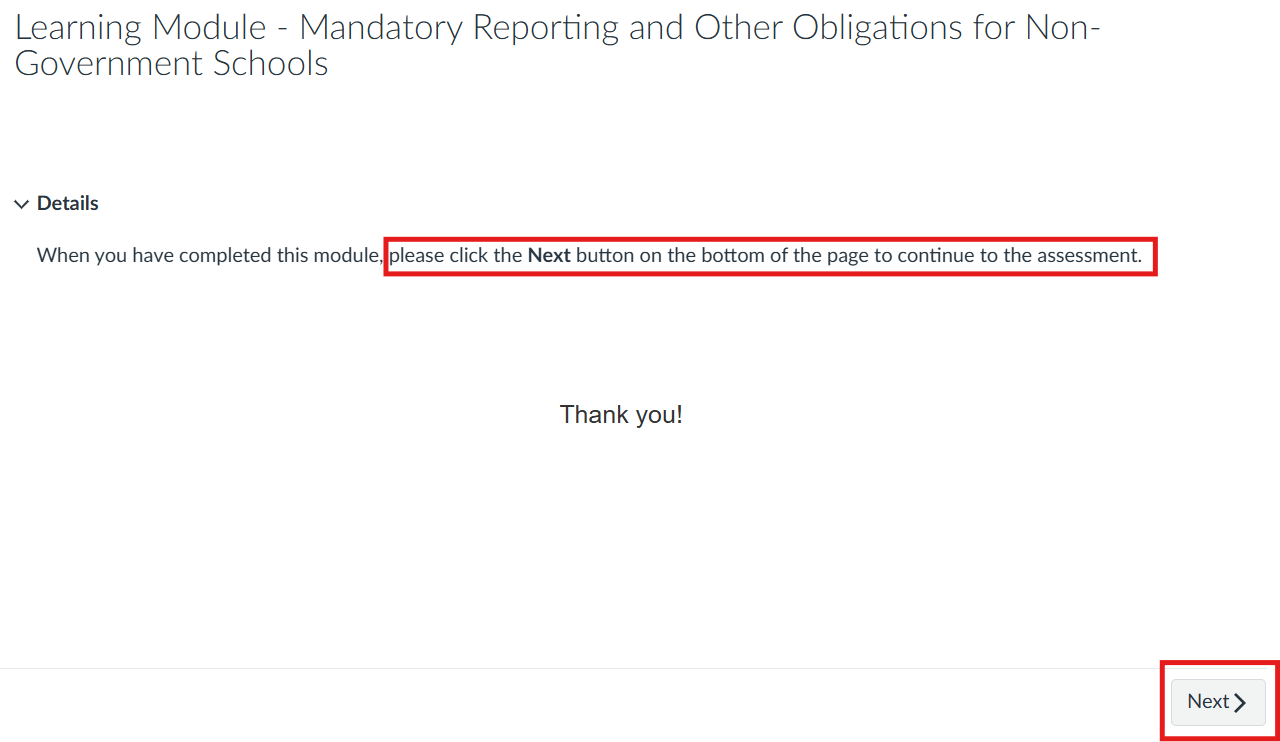
Step 4: After you complete the learning module, click ‘End’. Next, click ‘Save and exit’ and then click ‘Yes, exit the module’. A ‘Thank You!’ message will appear. Click the ‘Next’ button at the bottom right hand corner of the screen to be taken to the assessment.
Step 5: You will need to complete and pass the assessment with a minimum score of 90%. You can attempt this assessment as many times as you need. To re-attempt the assessment, click ‘Retake quiz’.
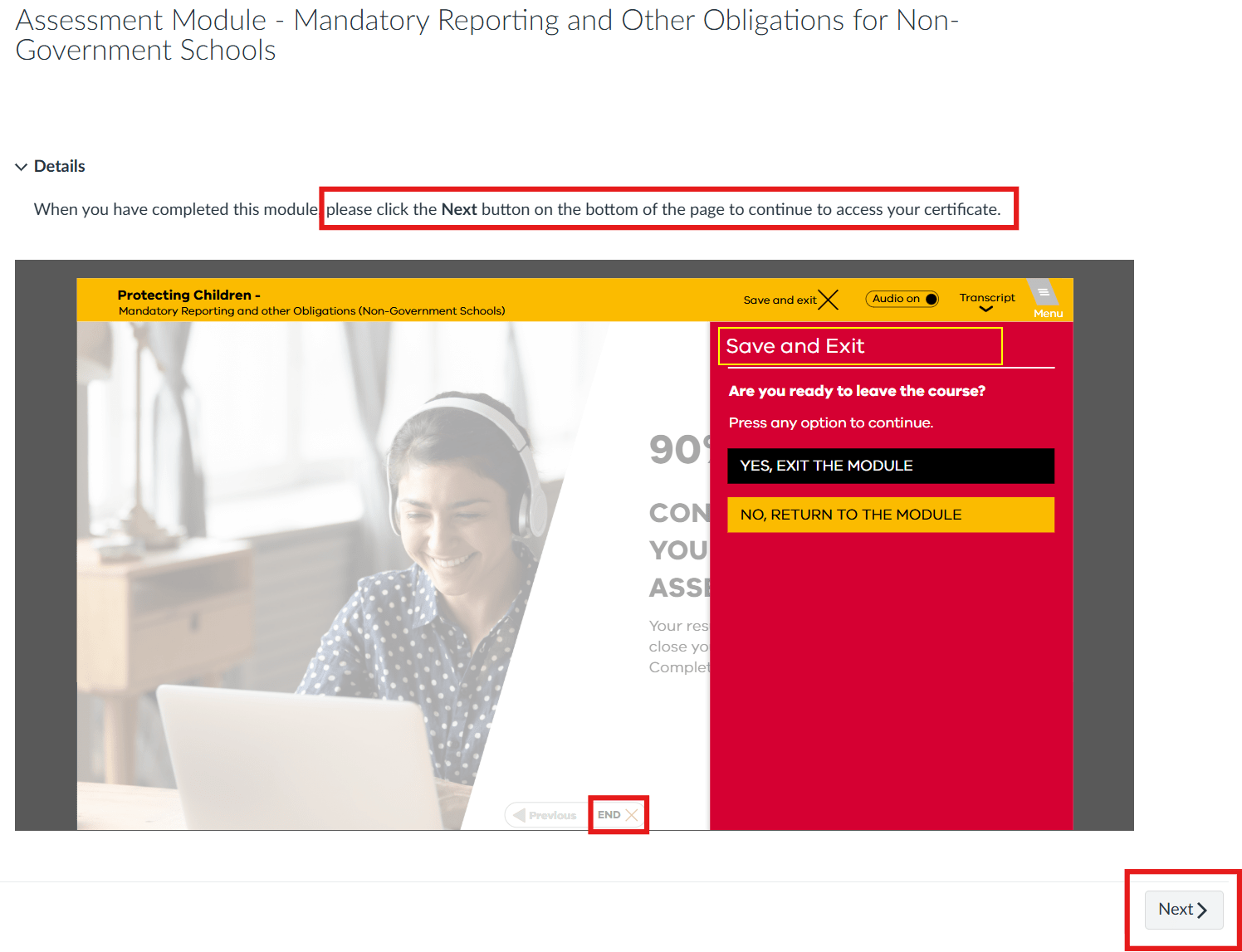
Step 6: After completing the assessment and achieving a minimum score of 90%, click ‘End’ and then click ‘Yes, exit the module’. A ‘Thank You!’ message will appear. Then click the ‘Next’ button at the bottom right hand corner of the screen to release your certificate.
Certificate of Completion
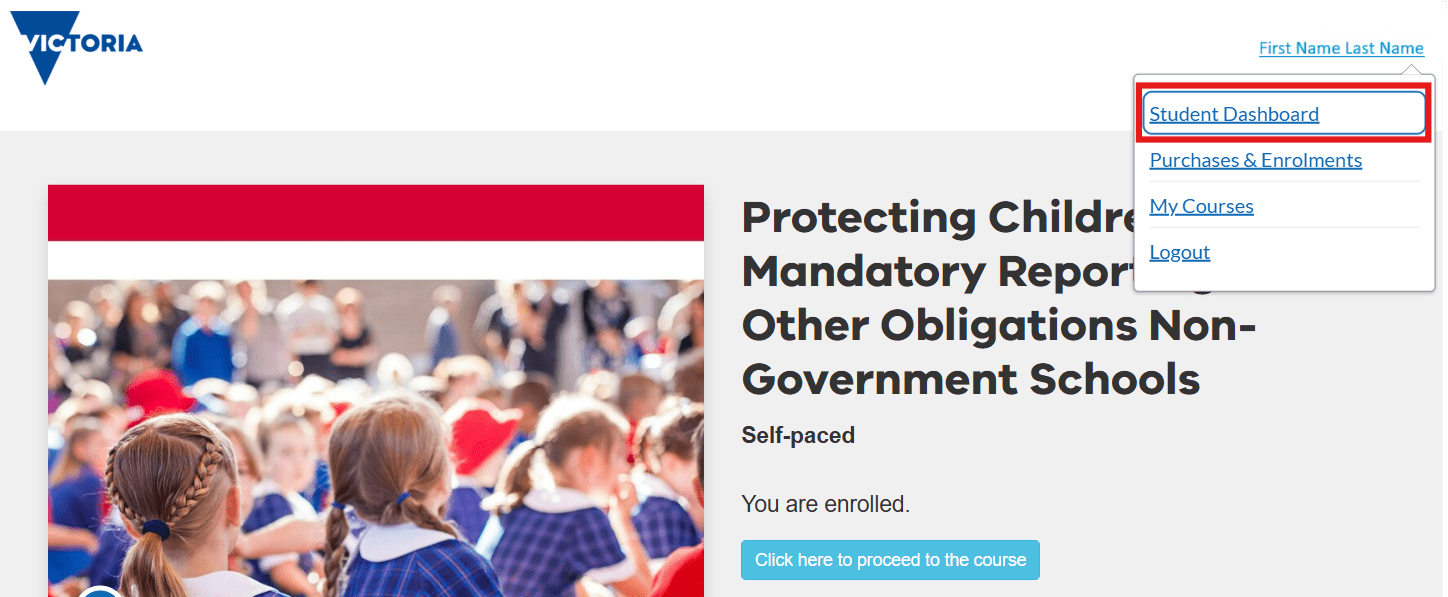
Certificates are emailed within 24 hours of course completion. You can also access your certificate from your account by clicking on your name in the top right-hand corner of the course enrolment page and selecting ‘Student Dashboard’.
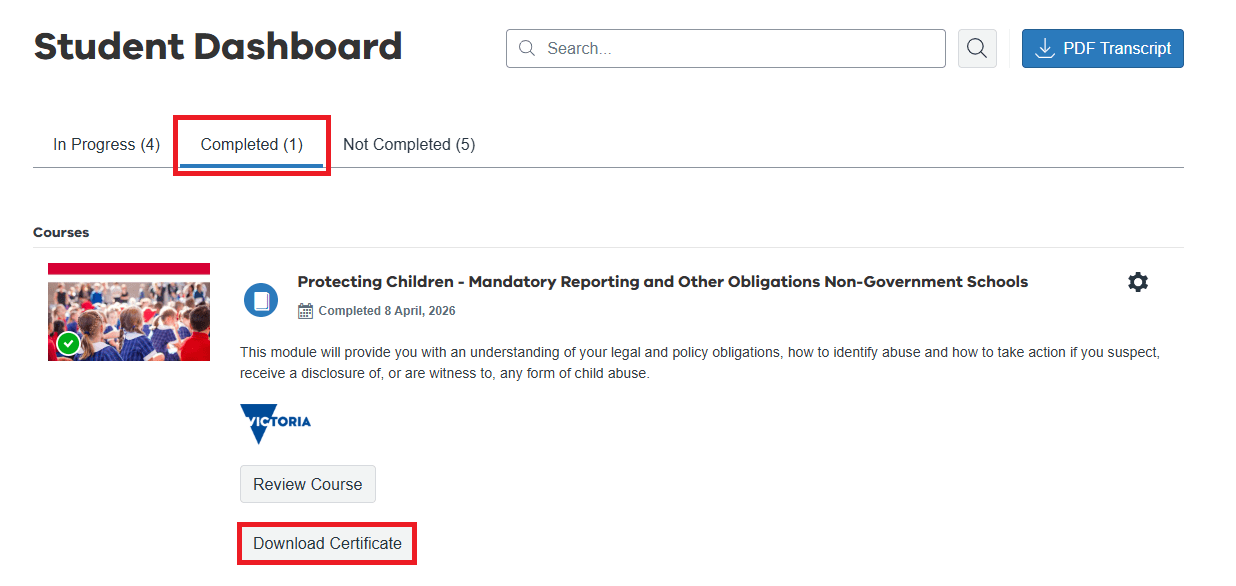
On your Student Dashboard page, select the ‘Completed’ tab and click the ‘Protecting Children - Mandatory Reporting and Other Obligations - Click to download certificate’ link to download a copy.
Support to complete the course
More information
Additional resources: Your reporting and legal obligations | schools.vic.gov.au Enquiries regarding course and technical content: student.engagement@education.vic.gov.au
- Early childhood professionals
This guide is for Early Childhood Education and Care staff, including Long Day Care, Kindergarten, Outside of School Hours Care and other Early Childhood Educators.
Please note that current settings for this course are to complete training every 12 months. The certificate remains valid for 12 months upon completing the course.
Although participants can re-take the Mandatory Reporting module any time after first completing the course, they will not be re-issued a new certificate with a new date as long as there is a valid certificate on the system.
All users - Create new account
Step 1: You must create a new account to access the LMS. Even if you already have a Canvas account elsewhere, it will not work on this system. All users must register a new account specifically for this site.
Go to https://ecprotecttraining.education.vic.gov.au(opens in a new window) and select the Early Childhood course.
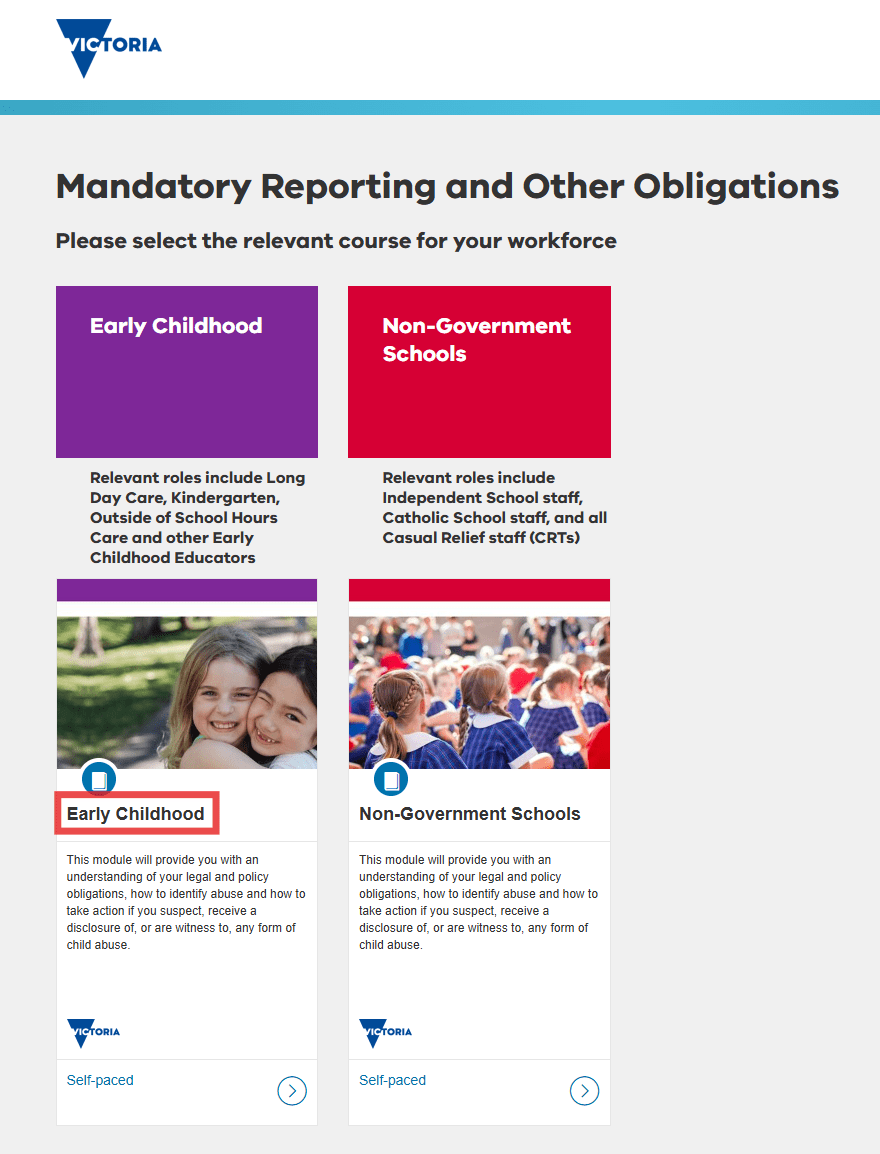
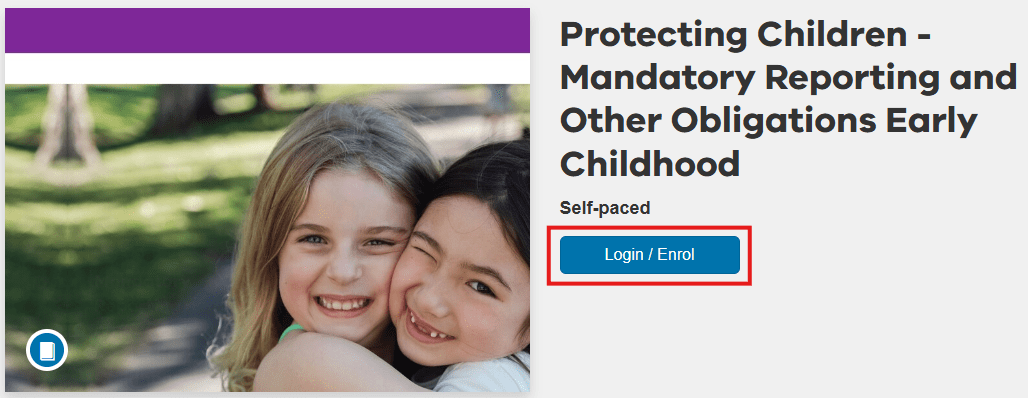
On the Protecting Children - Mandatory Reporting and Other Obligations Early Childhood course page, click the blue Login / Enrol button.
Step 2: Create an account by filling out the required fields.
You must fill in all the fields flagged with an asterisk (*).
The Department of Education manages personal information in accordance with relevant Victorian privacy law, the Privacy and Data Protection Act 2014. For more details, visit the Privacy Information Policy.
Enter your first name and last name.
Enter your email address twice.
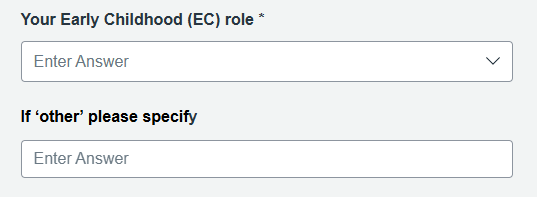
Step 3: Complete the section Your Early Childhood (EC) role by choosing the role that you mostly work in from the drop-down menu. If your role is not listed, select ‘Other - please specify’ and complete the If ‘other’ please specify field.
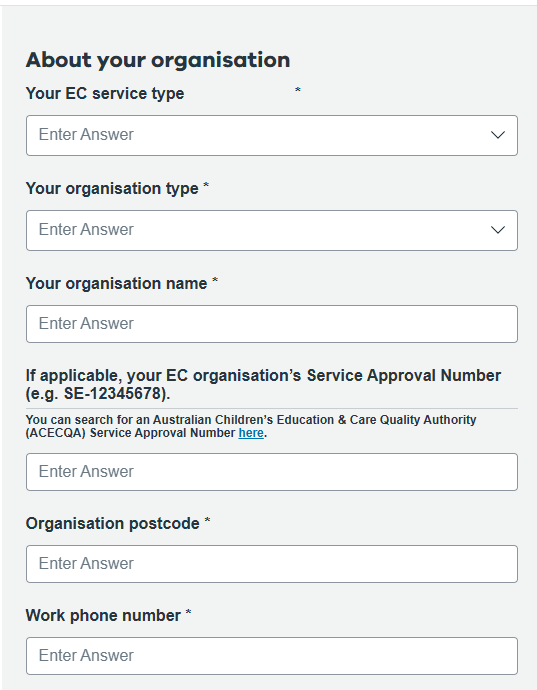
Step 4: Complete the section About your organisation. First, select Your EC service type by selecting it from the drop-down list. Then complete the fields for your organisation type, name, postcode and work phone number.
If applicable, you also need to enter your EC organisation’s Service Approval Number (e.g. SE-12345678). You can search for an Australian Children’s Education & Care Quality Authority (ACECQA) Service Approval Number by clicking the link provided.
Step 5: Agree to the terms and complete verification.
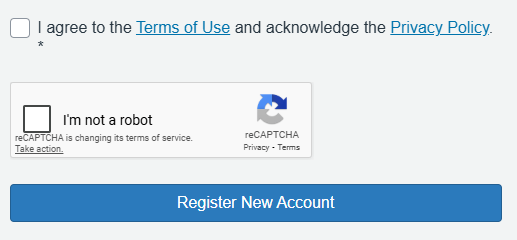
Tick the box to agree to the Terms of Use and acknowledge the Privacy Policy.
Then, complete the reCAPTCHA by selecting ‘I’m not a robot’, and click Register New Account to finish.
Step 6: Once you have successfully created an account, you will receive an email asking you to set up your password. Click the blue ‘Set up your password’ button in this email to complete your registration. Check your junk or spam folder in case it appears there.
Navigate to your course
Step 1: Once you have successfully set up your password, you will be taken to your Student Dashboard.
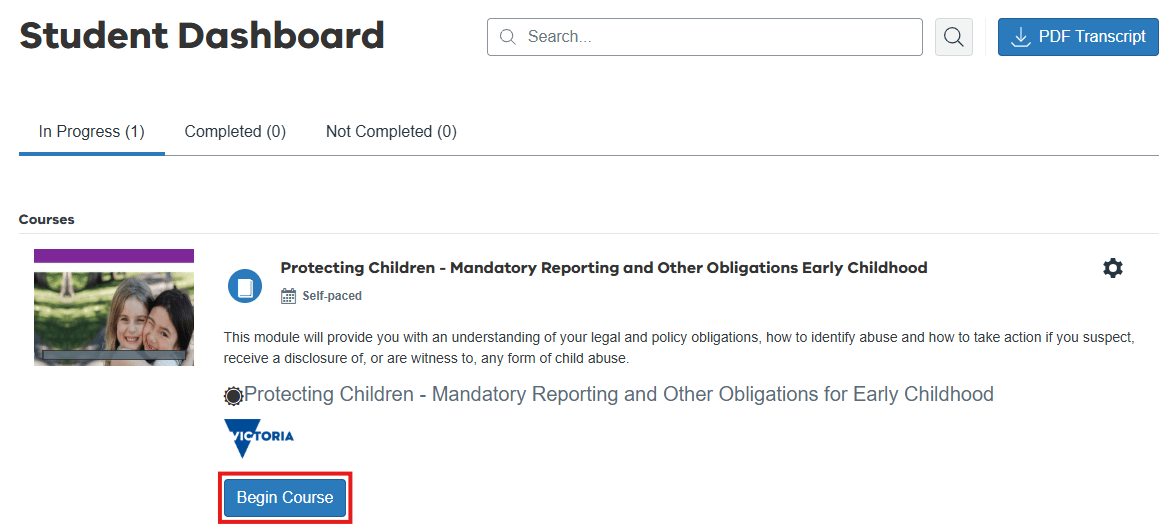
Step 2: Click the button ‘Begin Course’.
This course has two sections. A learning module and an assessment.
IMPORTANT: You need to complete BOTH the learning module and the assessment to successfully complete this course.
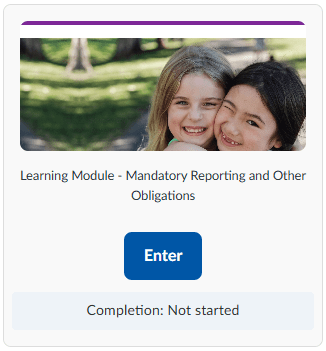
Step 3: On the course page, click the blue Enter button below the text that says ‘Learning Module - Mandatory Reporting and Other Obligations’ to begin.
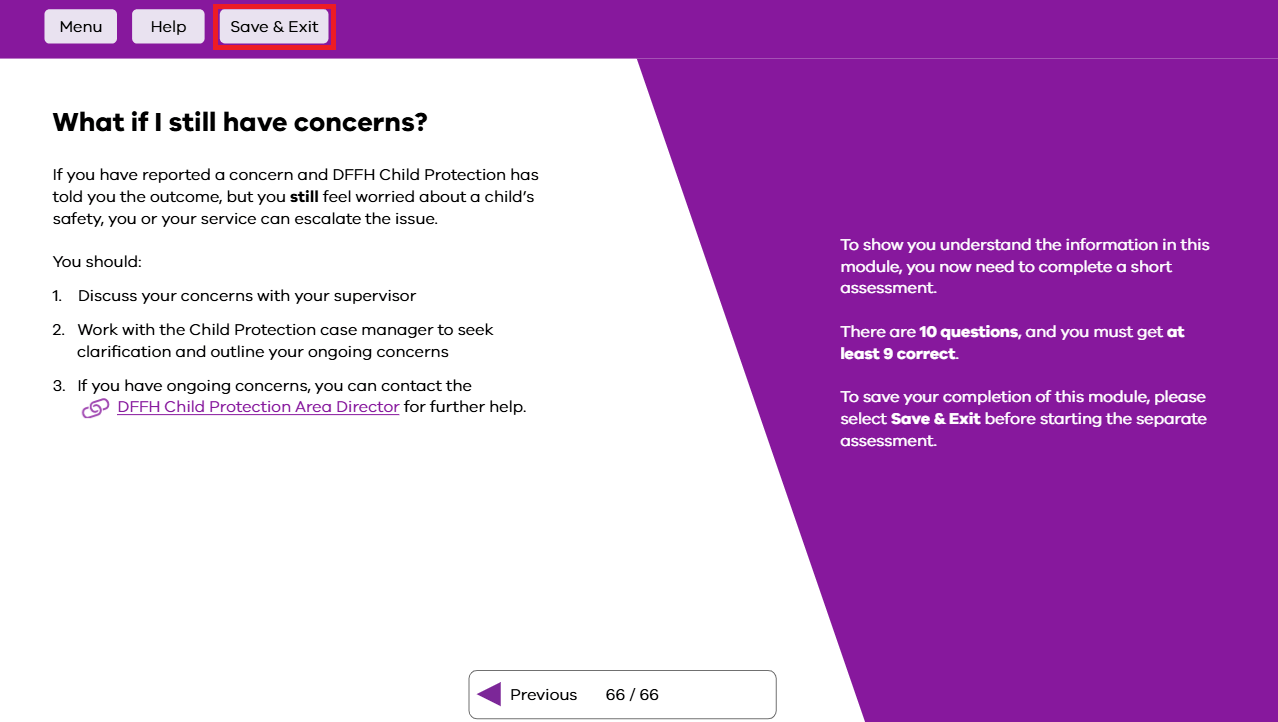
Step 4: After you complete the learning module, click ‘End’. Next, click ‘Save and exit’ and then click ‘Yes, exit the module’.
A ‘Thank you!’ message will appear.

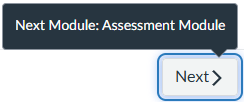
Click the ‘Next’ button at the bottom right hand corner of the screen to be taken to the assessment module.
Step 5: You will need to complete and pass the assessment with a minimum score of 90%. You can attempt this assessment as many times as you need. To re-attempt the assessment, click ‘Retake quiz’.
Step 6: After completing the assessment and achieving a minimum score of 90%, click ‘End’ and then click ‘Yes, exit the module’.
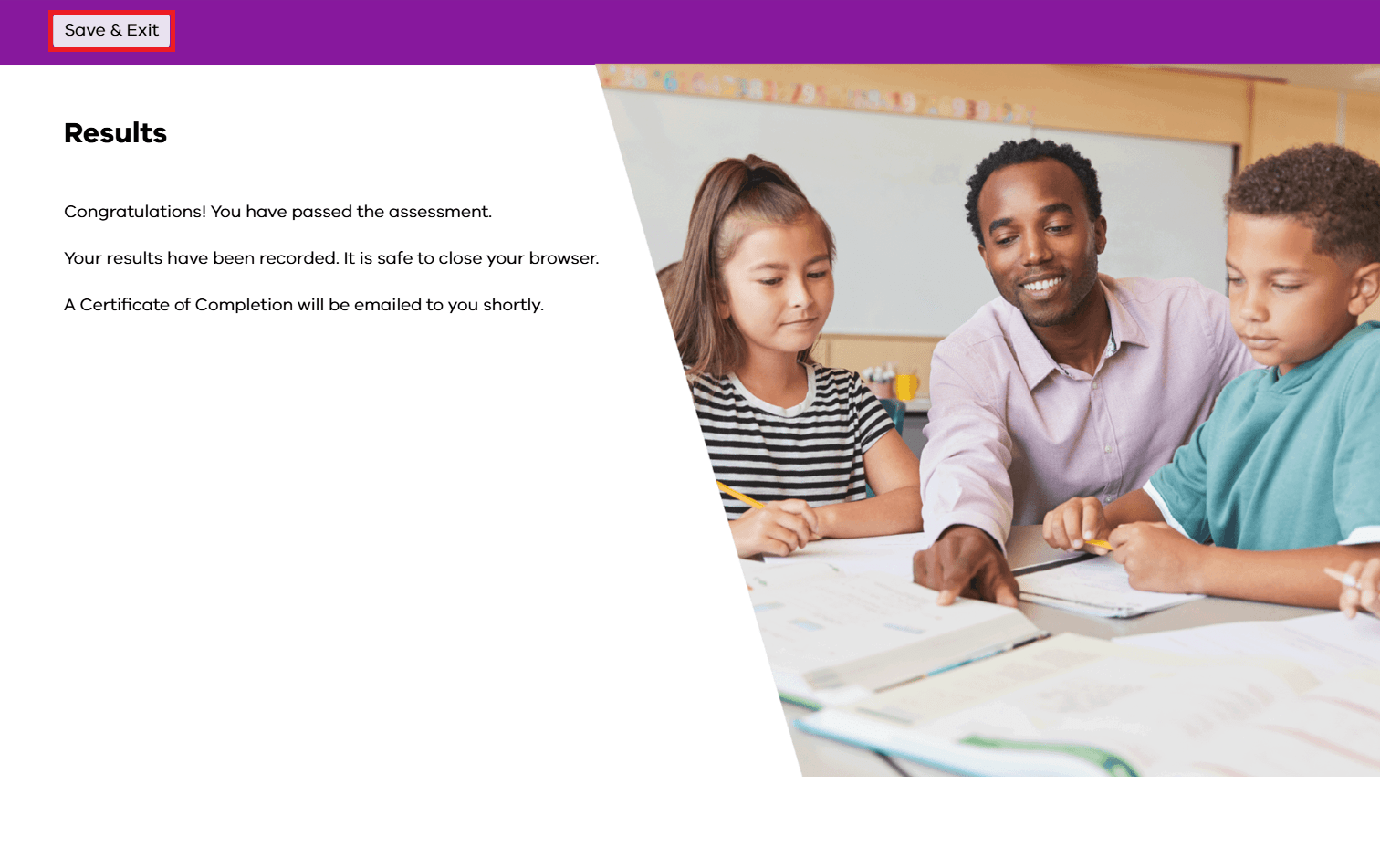
A ‘Thank you!’ message will appear.
Certificate of Completion
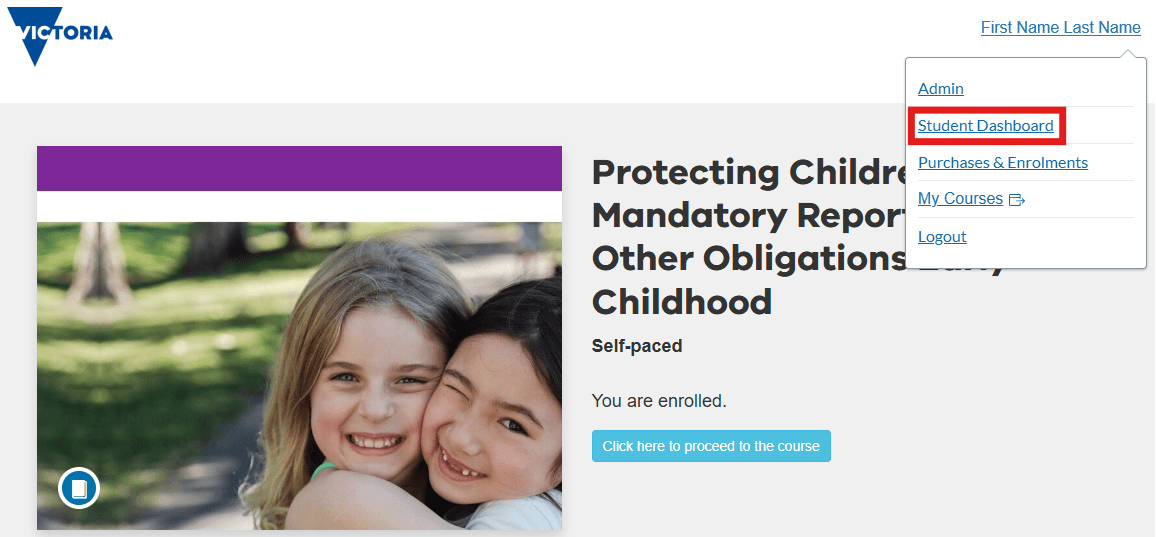
Certificates are emailed within 24 hours of course completion. You can also access your certificate from your account by clicking on your name in the top right-hand corner of the course enrolment page and selecting ‘Student Dashboard’.
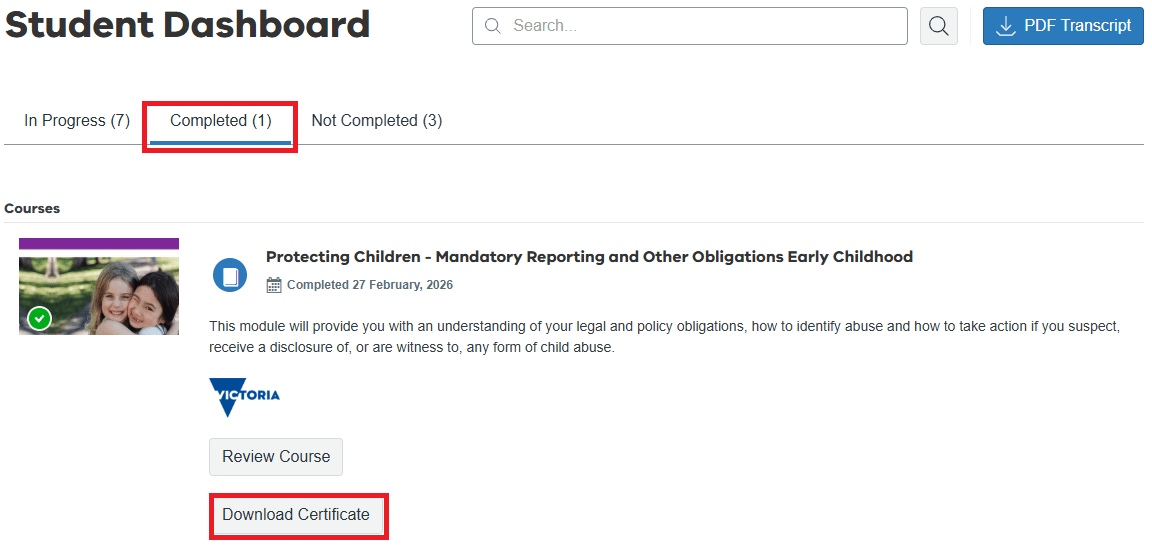
On your Student Dashboard page, select the ‘Completed’ tab and click the ‘Protecting Children - Mandatory Reporting and Other Obligations for Early Childhood - Click to download certificate’ link to download a copy.
Support to complete the course
Protecting Children - Mandatory Reporting - Early Childhood FAQs PDF 1.79 MB (opens in a new window)
More information
Additional resources: Protection and prevention of child abuse in early childhood settings | vic.gov.au Enquiries: For training support contact ec.protect@education.vic.gov.au. For all other enquiries contact the Child Safety Division childsafetyreform@education.vic.gov.au
- Government school staff
For government school staff, the Protecting Children - Mandatory Reporting and Other Obligations training is available on the Department of Education intranet My LearnED portal accessed through eduPay. You can only access the My LearnED portal if you are a current and active government school teacher or employee with an @education.vic.gov.au email address.
Updated 26 March 2026
About the VIC Government
- The Premier and ministers
- Find a Vic Gov department, agency or service
- Strategies and policies
- Inquiries and royal commissions
Grants and programs
Jobs and careers
Arts, culture and heritage
Business and the workplace
- Mentally Healthy Workplaces Framework
- Portable Long Service Authority
- Victoria’s racing industry
- Workforce Inspectorate Victoria
- Liquor licensing, sale and supply
Communities
- Children
- First Peoples - State Relations
- Finding records
- Gender equality & women’s leadership
- LGBTIQA+ equality
- Multicultural communities
- Seniors Online
- Veterans support and commemoration
- Volunteering in Victoria
- Youth Central
Education and training
- Victorian Early Childhood Regulatory Authority
- Early childhood education – information for professionals
- Kinder: Best Start, Best Life
- Education – information for parents
- Schools.Vic - information for schools
- Education grants, programs, awards and events
- PROTECT
- TAFE, training and universities sector
- TAFE Victoria
- Victorian Skills Authority
- Apprenticeships Victoria
- Learn Local
Environment, water and energy
Finance and economy
Health and social support
- Family violence reform
- NDIS Worker Screening Check
- NDIS and disability services and support in Victoria
- Patient Review Panel
- Transforming Trauma Victoria
Housing and property
Law and justice
- Adoption
- Births, deaths and marriages
- Honorary justices
- Machete ban
- Safeguarding Victorians against terrorism
- Stolen Generations Reparations Package
- Victims of Crime
- Victorian Racing Tribunal
Safety and emergencies
- Emergency Recovery Victoria
- Victorian Emergency Relief and Recovery Foundation
- Emergency Recovery Resource Portal
- How well do you know fire
- Fire Services Reform
- Water safety
- Marine Search and Rescue
Science and technology
- Data sharing and open data
- Data.vic - discover and access Vic Gov open data
- Developer.Vic - portal for API developers
- Go.vic URL shortener
- Vic Gov IT project dashboard
- Victoria’s free public wi-fi network
- Cyber security in the Victorian Government
Sport and recreation
Traffic and transport
- Cameras Save Lives
- Transport Fines
- Getting Around
- Transport Planning
- Transport Future
- Climate Change and transport
- Future Directions For Transport
- Transport projects
- Ports and Freight
Working in the Victorian Government
- Single Digital Presence home
- Accommodation and Library Services
- Executive employment in the Victorian public sector
- Budget, procurement and funding
- Careers in the Victorian Government
- Council and Regulator Toolkit
- Guidelines for working in government
- Join a government network
- Standards and guidelines
- VicFleet CarPool
- Victorian Government style guide